Ergonomic Workstation Setup Examples for Home Offices
What are examples of an ergonomic workstation setup?
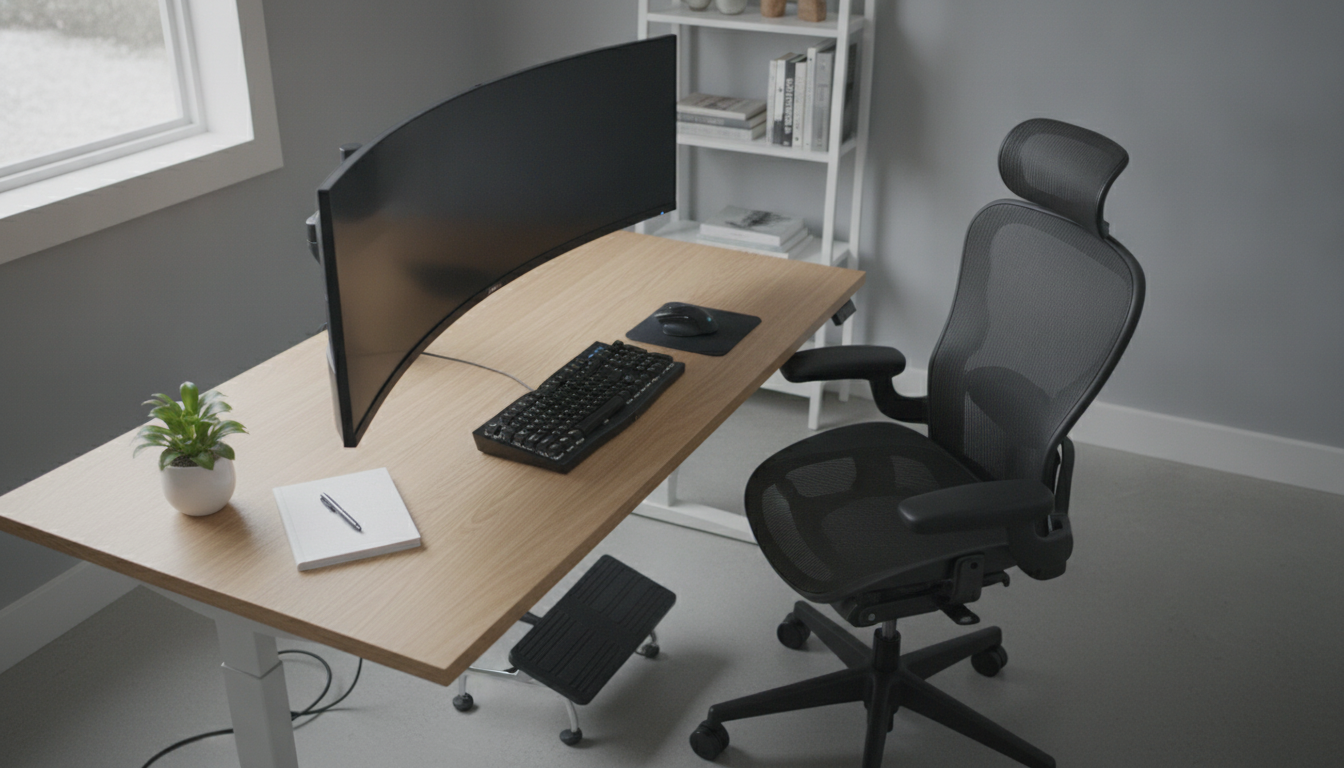
Ergonomic workstation setups come in a few common “recipes,” but they all aim for the same outcome: neutral posture, easy reach, and less strain over long sessions. Below are practical examples you can copy at home, whether you have a dedicated office or a small corner of a room.
Example 1: Standard desk + adjustable chair (the classic setup)
Set chair height so your feet rest flat on the floor (or on a footrest) and your knees are roughly level with your hips. Position the keyboard so your elbows stay close to your sides and bend around 90 degrees, with wrists straight. Place the monitor directly in front of you at about an arm’s length away, with the top of the screen near eye level to reduce neck bending.
Example 2: Laptop workstation with riser + external peripherals
A laptop on a desk often forces a choice between looking down (neck strain) or reaching up to type (shoulder strain). A better ergonomic setup uses a laptop stand or stack of stable books to raise the screen to eye level, plus an external keyboard and mouse at comfortable hand height. This creates a “split” between screen height and input height—one of the simplest upgrades for comfort.
Example 3: Sit-stand workstation for alternating positions
With a standing desk (or desktop converter), adjust the surface so your forearms can rest parallel to the desk while shoulders remain relaxed. Keep the monitor at the same eye-level target as sitting. Use supportive shoes or an anti-fatigue mat, and alternate between sitting and standing to avoid staying in one posture too long.
Example 4: Small-space or budget workstation
Even a compact table can be ergonomic with a few tweaks: add a seat cushion or lumbar support to keep the lower back supported, use a footrest to stabilize your legs, and elevate the monitor with a sturdy riser. Prioritize a stable chair, centered screen, and a clutter-free “reach zone” so frequently used items stay within easy arm’s reach.
For a step-by-step checklist to dial in comfort and focus, see the full guide: home office ergonomics checklist.
FAQ
How do I know if my desk chair is adjusted correctly?
Your feet should be supported, your hips and knees should feel open and stable, and your shoulders should stay relaxed while typing. If you feel yourself reaching forward or craning your neck, adjust chair height, back support, and screen position until you can sit upright without effort.












Leave a comment